Shifting up a gear: How we’re driving digital growth for Motorsport UK
24th February 2026

15th January 2018
Roughly a 7 minute read by
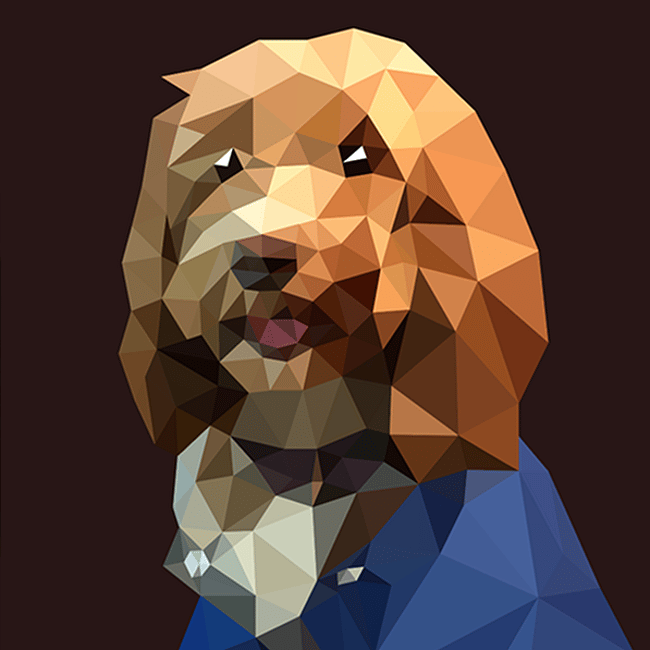
In this tutorial you’ll learn how you can create low poly effect artwork in Adobe Illustrator based on a photograph. The process may need to be practised a couple of times, but once you’ve done it once or twice, it’s easy to get in the swing of! Here I’ve used a photograph of one of our lovely office dogs, Betty, as an example.
Set up a new document in Illustrator, and import the photo file you wish to base your design on. Create a new layer, and lock layer 1 with your photo in it.
Select the Pen tool (p) from the tools panel. Give the path a bright colour and a thick enough width that it will stand out against your photograph.
Begin by drawing triangles over the top of your image. You can continually draw the triangles from one to the next without creating a new complete shape each time. For example when you’ve drawn your first triangle, you can draw 2 lines from this to create the next, which avoids any overlapping paths. Hold the shift key when you see your cursor turn to the minus symbol (As we don’t want to delete any anchor points) but we do want all the anchor points aligned on top of each other, and the triangles connecting.
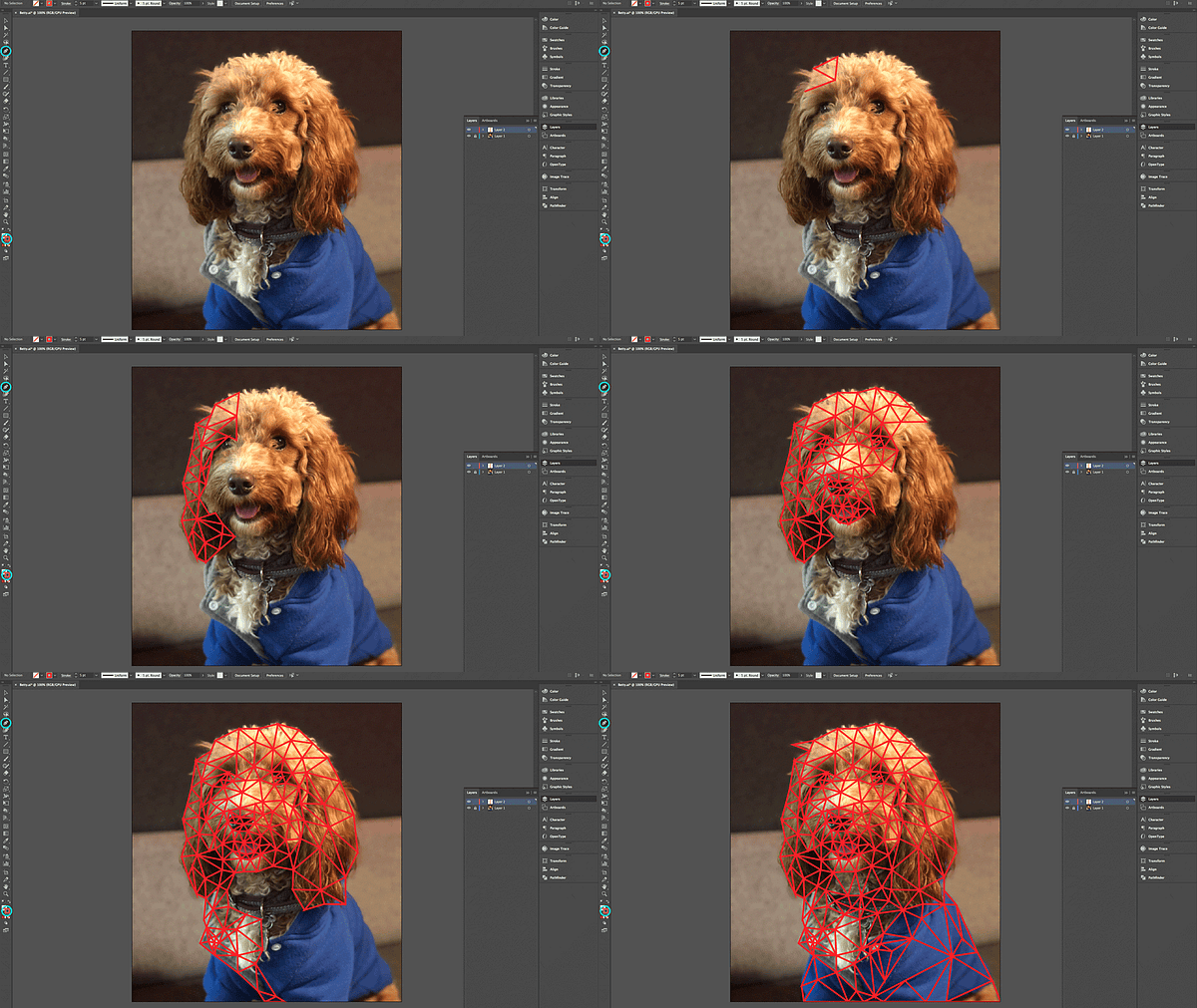
Once all your connecting triangles are drawn, we now need to make it a live paint object so we can fill the triangles; as we’ve drawn the triangles continuously there are many open paths so we can’t simply just fill them. First select them all, then select Object > Live Paint > Make.
You’ll need to be using both the Live Paint Bucket tool (k) and the Eyedropper tool (i). They both can be found in the left hand side tool bar; the Live Paint Bucket is hidden under the Shape Builder Tool. However, using the shortcuts will make things much easier. First select the Eyedropper Tool (i), and select the most common background colour from your photograph, from within your first triangle. Then switch to the Live Paint Bucket tool (k) and click to fill the triangle with that colour.
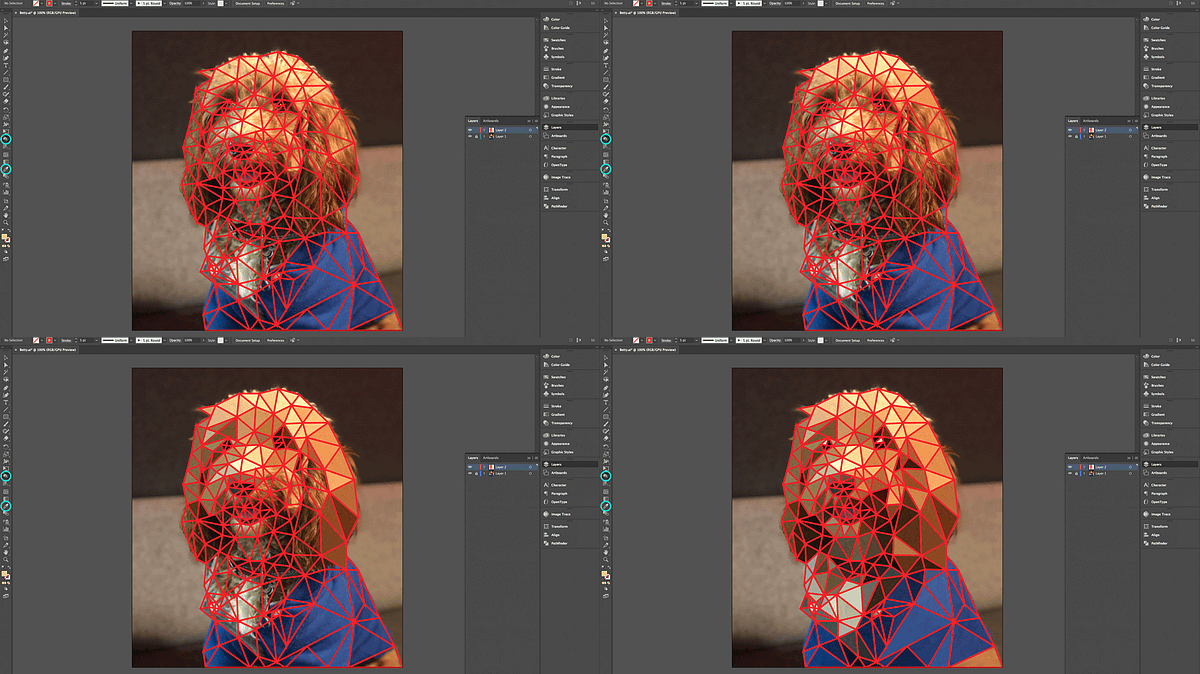
Repeat this action: first picking the colour (i) and then filling (k) for each and every triangle, until you’ve filled your entire shape.
Hide layer 1 with your photo in it. Now select everything in layer 2, and remove the stroke. You should now have your low poly drawing!
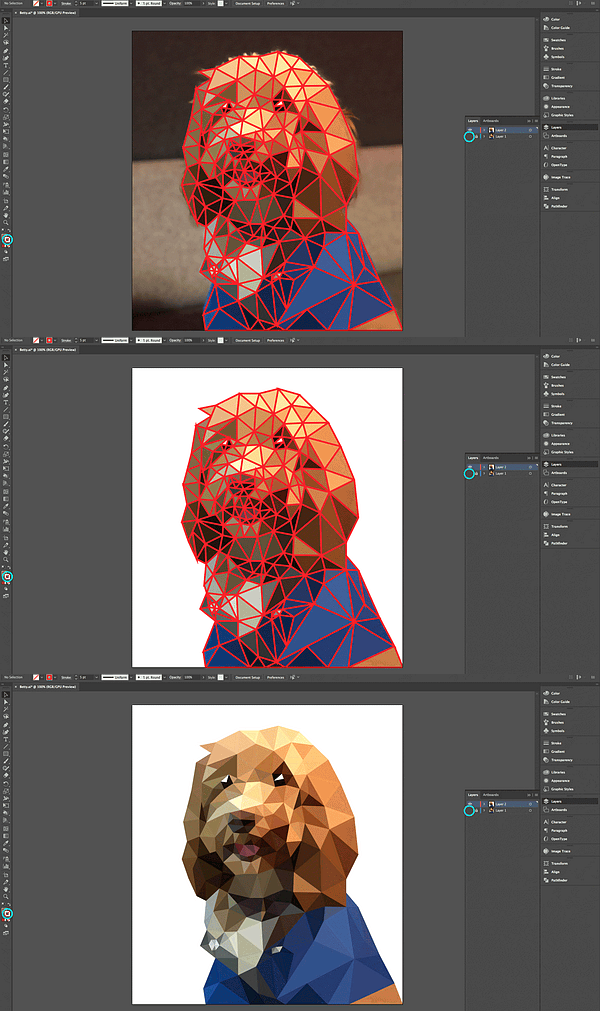
This is still a live paint object – in case you want to edit each triangle like a normal shape, you need to select everything, and go to Object > Expand, and this will separate the shape into individual triangles.

24th February 2026
3rd February 2026

29th January 2026

3rd November 2025