How we migrate websites to Craft CMS
5th May 2026

21st May 2019
Roughly a 5 minute read by
I’ve pulled together this list of extensions specifically to help you become a faster and more efficient web developer. Cut corners, keep your focus on the things that matter, spend time on the basics and make fewer errors.
This isn’t an exhaustive list of every extension you’ll want or need; it’s better that you search for those specifically related to the language or type of coding that you undertake day to day. There’s not much point me raving about how much the Twig for Craft extension speeds up my development when writing Twig, if you don’t use Twig or the Craft CMS.
You can also scroll to the end if you want some more opinionated extensions for Visual Studio code; this includes options for your choice of font, theme and file icons.
The following extensions I recommend installing have been grouped into relevant sections, as follows:
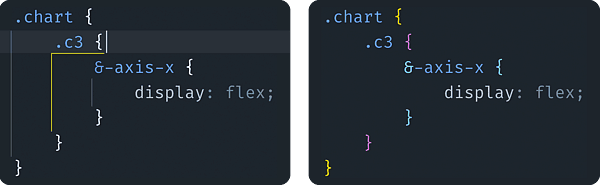
Shown in the screenshot above - left. Enhanced version of the indentation guides that are provided by default, they let you see even quicker where nested blocks start and end by actively highlighting based on your cursor position.
Shown in the screenshot above - right. Much like ‘Guides’ above, this makes your code easier to digest with a quick scan by colour coding your brackets either based on their nesting level or all completely independently from each other.
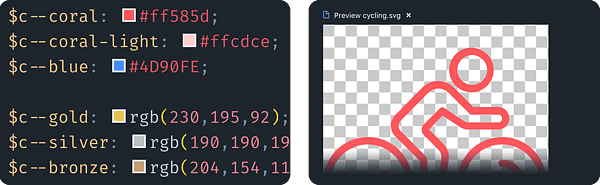
Shown in the screenshot above - left. See the colour behind your hex values and sass variables with a visual highlight.
Shown in the screenshot above - right. Never leave Visual Studio Code to check an SVG again, with this extension preview an SVG in a new Code tab with a simple right click.
Helps to keep your code tidy and consistent (if your whole team is on board then it doesn’t matter who authored the code originally, it should feel like your own).
This adds Syntax Highlighting support for Environment (.env) Files.
Simple time savers through automation.
There are many IntelliSense extensions that will help you save time. These 3 adds autocompletion results for SCSS variables, CSS class names and file paths.
Such a basic concept and a massive time saver: intelligent indenting which matches the current indent when you’re pasting code.
A double whammy of time savings, these extensions do what they save on the tin: add closing tags automatically and rename them if the tag is updated later on.
If you’re not using Visual Studio Code right now, maybe knowing that there are extensions available to ease your transition would tempt you over? Add in your current text editors shortcuts and you’d be able to move over without having sink time into retraining your keyboard shortcut muscle memory.
So while not everyone will be using version control, I think it’s a safe enough bet to includes the following extensions here:
This lets you open your repositories without having to specifically making a workspace or project for them, grabbing your project list automatically from your sites folder.
Another simple time saver; when you’ve have a line of code highlighted, you can now at a glance see exactly who authored it, the commit message and date.
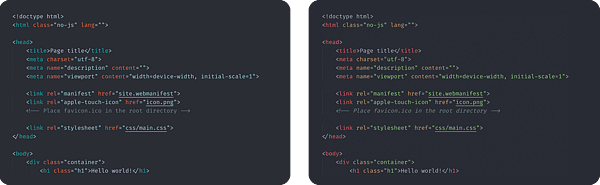
After firing a quick message around the team, here are a selection of popular choices to give a try for your colour scheme, font and folder icons (with my personal recommendations top of each list).
They’re all highly subjective, literally everyone in the office uses a different theme so I’ve selected four of the better suggestions. Although, it’s worth noting that no one was crazy enough to suggest a light colour scheme.
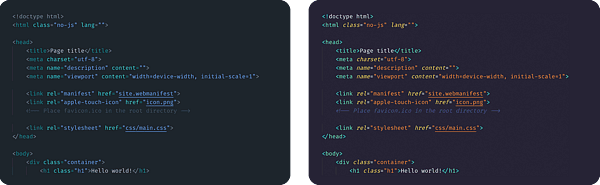
Left: City Lights. Right Synthwave ’84
5th May 2026
20th April 2026

7th April 2026

31st March 2026
